ictPrep | The Ultimate Edexcel & Cambridge ICT Learning Hub
Topic 2 – Methods to secure data and personal information online
In the last section, we saw the risks to our data: hackers, malware, accidental deletion, phishing and pharming.
Now the big question is: how do we protect ourselves? Now we’re learning the methods to keep our data and personal information safe online. By the end of this section, you will be able to:
- Explain how firewalls and anti-malware software defend against attacks.
- State how encryption keeps data unreadable to anyone who intercepts it.
- Describe how strong passwords and two-factor authentication protect your accounts.
- CAPTCHA tests and security questions
- Anti-malware: anti-virus, anti-adware and anti-spyware
- Access rights and file permissions: permissions are authorisation settings that let users access files, folders or drives.
- Identify safe online behaviour, such as checking for secure websites (HTTPS), using privacy settings, and not sharing personal information.
- Explain why regular backups protect against data loss.
Firewalls
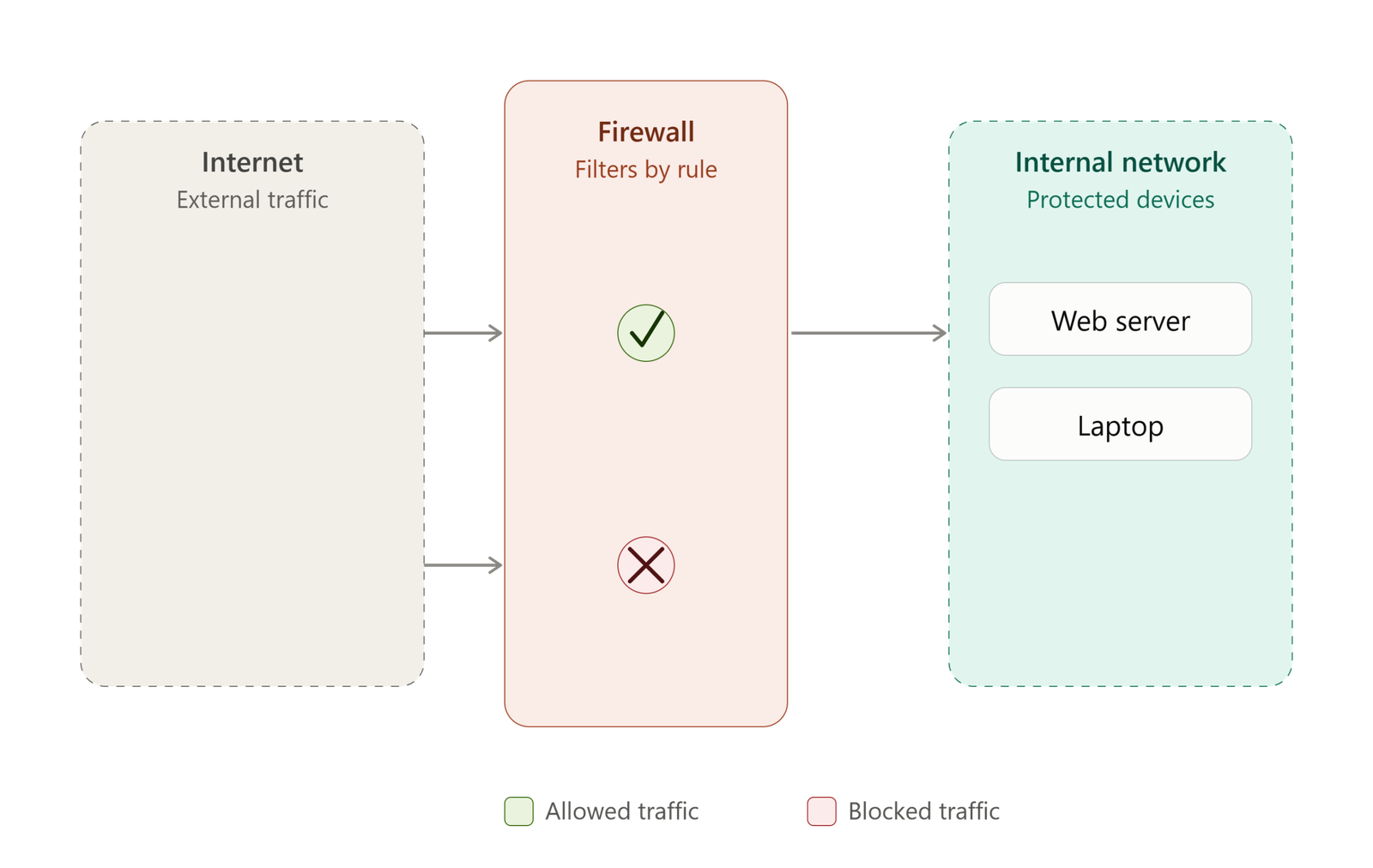
A firewall sits between your internal network and the outside internet, inspecting every packet that tries to cross that boundary. It checks each request against a set of rules — things like the source, destination, port, and protocol — and makes a pass/fail decision:
- Allowed traffic (like a normal web request on port 80) gets forwarded through to your server or device.
- Blocked traffic (like an unrecognized or suspicious connection attempt) gets dropped right at the firewall and never reaches your network.
Think of a security guard at a school gate with a list of who may enter and leave.
Encryption
Encryption turns readable data into scrambled nonsense that only someone with the right key can undo.
- Plaintext is your original, readable message.
- Encryption runs it through an algorithm along with a secret key, producing ciphertext — a scrambled version that looks like random noise to anyone without the key.
- Decryption runs the same key through the reverse process, turning the ciphertext back into the original plaintext.
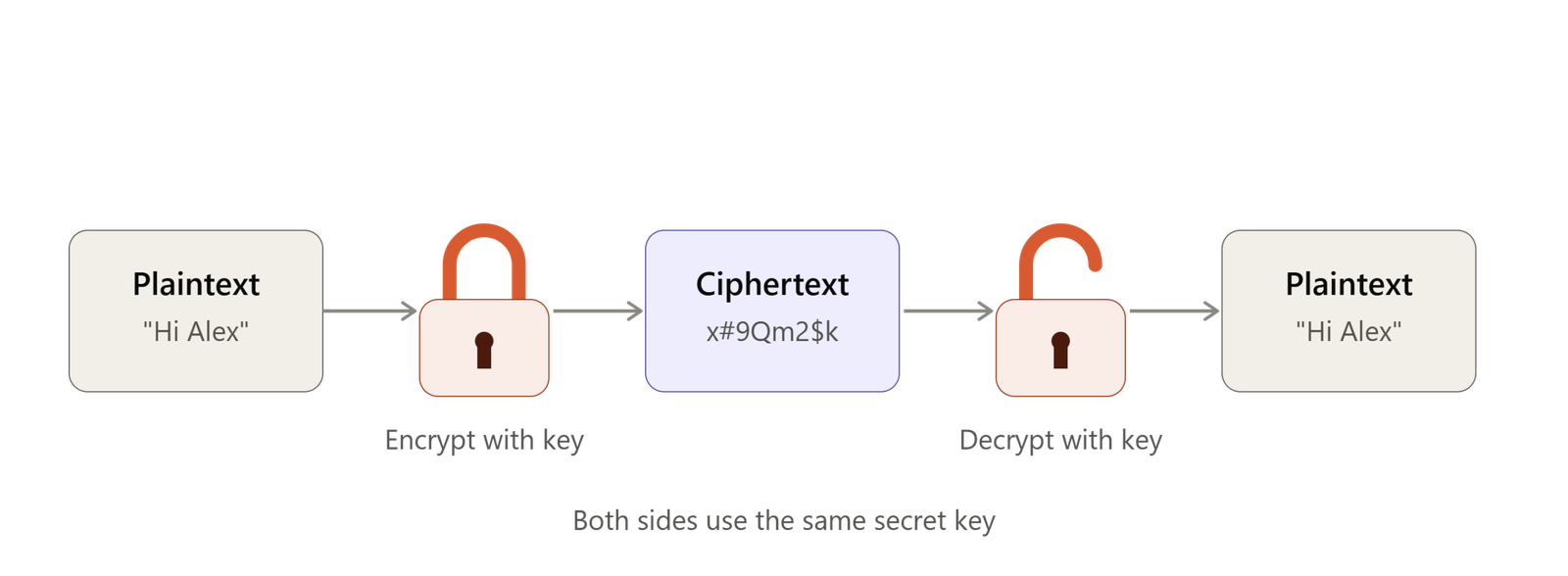
The diagram above shows this with symmetric encryption, where the same key locks and unlocks the message. There’s also asymmetric encryption (used in HTTPS and secure messaging), where a public key locks the message but only a matching private key can unlock it.
Passwords, PINs and biometrics
Passwords, PINs and biometrics authenticate (prove who they are) a user to the system. They can use an online system such as webmail or an online bank account. Biometrics use body features such as fingerprints, face or iris.
What are the characteristics of a strong password?
• more than eight characters long
• a mix of letters, numbers and symbols
• a mix of uppercase and lowercase letters
• made of random characters, not common words, names or dates
• changed frequently, and something you have not used before.
Two-factor authentication (2FA) adds a second proof, such as a code sent to your phone or an authenticator app. A stolen password alone is then not enough.
Passkeys, supported by Google, Apple and Microsoft, replace passwords with a fingerprint, face scan or device PIN.
Biometrics are convenient, but you cannot change your fingerprint if it is ever copied.
CAPTCHA tests
CAPTCHA – a program or system that can tell whether a user is a human or a computer bot.
What is a computer bot? – a computer program that can interact with systems or users.
When you create an online account you may have to pass a CAPTCHA test. It checks that data is being entered by a human and not by an automatic program called a bot or web robot.
CAPTCHA stands for Completely Automated Public Turing Test To Tell Computers and Humans Apart.
Anti-malware: anti-virus, anti-adware and anti-spyware
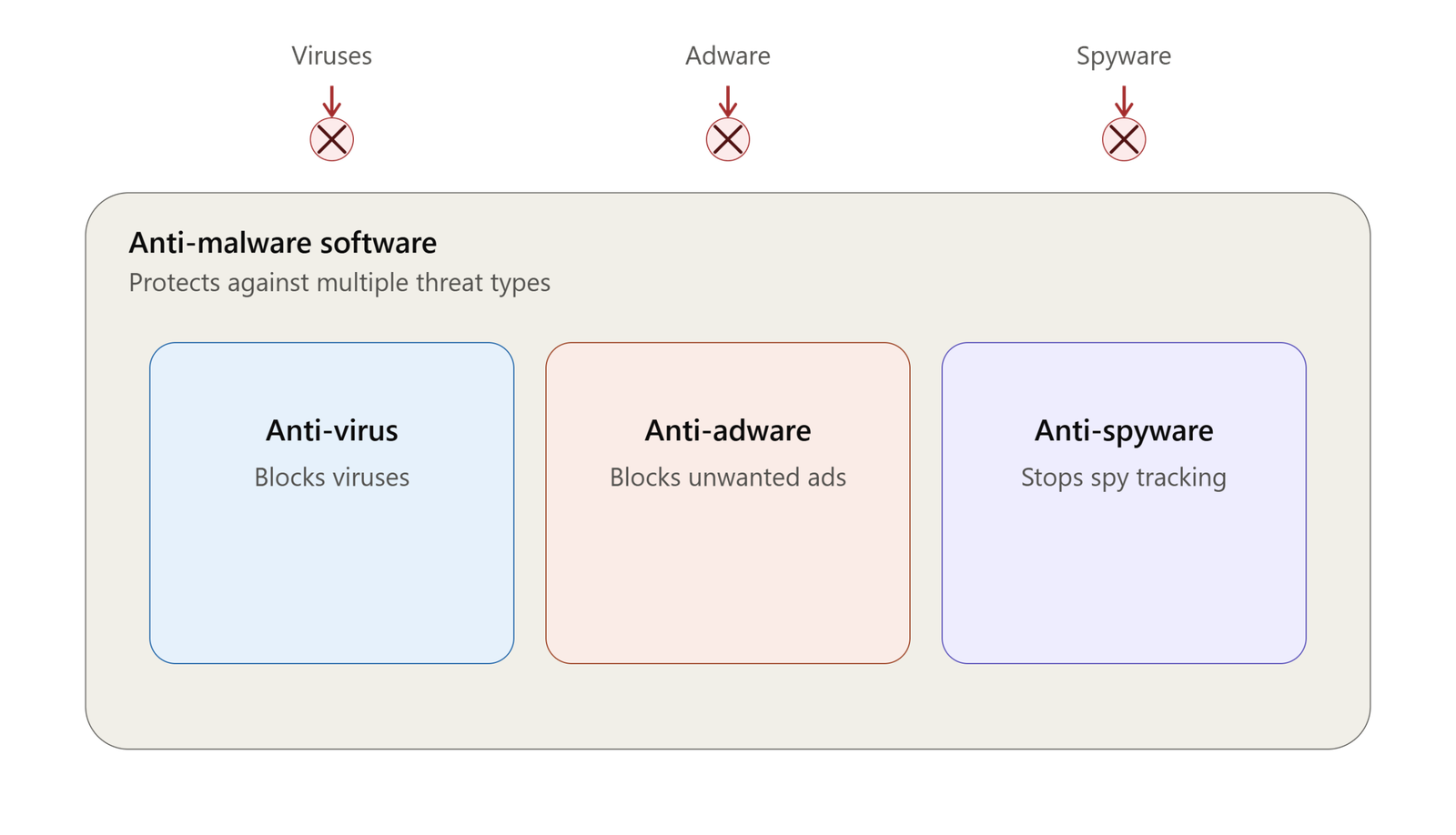
Anti-malware software stops malware from reaching or running on a computer. It scans files in real time (almost immediately as they are used) and lets you scan files, folders, disks or the whole system.
Anti-virus
A virus is malware that uses networks to spread to connected devices. Viruses spread through email or from USB flash drives. They often look like normal files, but each has unique virus definitions (sequences of code) that anti-virus software can recognise. The software constantly checks downloaded and loaded files. If it finds a match, it quarantines the file, isolating it where it cannot run or harm other files.
Anti-virus must be updated regularly because virus code changes. There is a constant battle between people who create threats and people who build protection.
Anti-adware
Adware shows unwanted adverts. Anti-adware detects, quarantines and removes it.
Anti-spyware
Spyware secretly records computer data and user input. A keylogger is spyware that records key presses or mouse movements, so criminals can find your passwords or card numbers. Anti-spyware detects, quarantines and removes spyware.
Because anti-virus tools are usually sold together with anti-adware and anti-spyware, the whole package is often called anti-malware.
Access rights and file permissions
Permissions are authorisation settings that let users access files, folders or drives. The two most common are:
- read only – where a user can open and view a file but not change it,
- read and write – where a user can also edit and save it.
This protects data in three ways:
- it stops unauthorised changes
- it reduces accidental deletion
- it limits the damage if a user’s account is hacked or infected by malware.
REAL-WORLD EXAMPLE
Google Docs and OneDrive let you share a file as Viewer, Commenter or Editor. In a hospital, a receptionist can see appointments but not medical notes.
Secure websites
Hypertext Transfer Protocol (HTTP) is used to exchange data between a web server and a client (the computer using the site).
Data sent using HTTP is not secure, so Hypertext Transfer Protocol Secure (HTTPS) was developed. HTTPS authenticates payment servers (computers that authorise financial transactions) and provides encryption using Secure Socket Layer (SSL) and, more recently, Transport Layer Security (TLS).
HTTPS keeps communications private and protects online accounts. Web browsers usually show a padlock in the address bar when a site is secure. Some newer browsers use a different icon, and they warn you with “Not secure” if a page uses only HTTP.
REAL-WORLD EXAMPLE
Important warning: A padlock means your connection to the site is encrypted. It does not prove the site is honest. Many phishing and pharming sites now also use HTTPS. Always check the address as well.
Backup procedures
A backup is one or more copies of your data. Backups are usually stored on an external storage device. Then the data is safe even if the original device fails or is damaged, lost or stolen. Backups can also be saved to online storage, so a copy is held in a second geographical location. Backing up online can be
slower because it uses your internet connection.
Users must decide how many files to back up and how often. More regular backups need more storage space. Less frequent backups risk losing recent work. Files can be lost or damaged by theft, flooding or fire, malware and power cuts.
What are the types of backups?
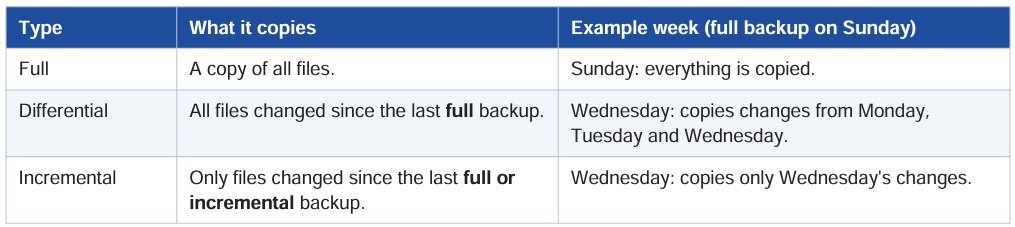
Incremental backups are quicker and smaller. Differential backups are quicker to restore, because you need only the last full backup plus the latest differential. Restoring from incrementals needs the full backup and every incremental in order.
Good ideas for backup procedures:
- Set automatic backups. People forget; an automatic system is more reliable.
- Do not rely on optical media (CDs and DVDs), because they deteriorate and are fragile.
- Schedule backups for late in the evening, when nobody is using the data, to avoid conflicts.
- Create more than one copy, and keep one copy of important folders in online storage.
- Store copies at multiple locations.
- Keep important data in a fireproof safe.