ictPrep | The Ultimate Edexcel & Cambridge ICT Learning Hub

Input devices
How does a computer know what you want it to do? You give it information using input devices!
Input devices are hardware devices used to enter data into a computer system. They allow users to interact with computers and other digital devices. From typing with a keyboard to scanning a QR code or speaking into a microphone, different input devices are designed for different purposes.
In this section, you will explore the different types of input devices, how they work, and where they are used.
Don’t just memorise the names of input devices — understand how and why they are used!
For each device, discover its purpose, key features, advantages and disadvantages. These are the points that can help you build strong answers, earn valuable marks and become more confident in your ICT exam!
Learn it → Understand it → Use it → Score it!
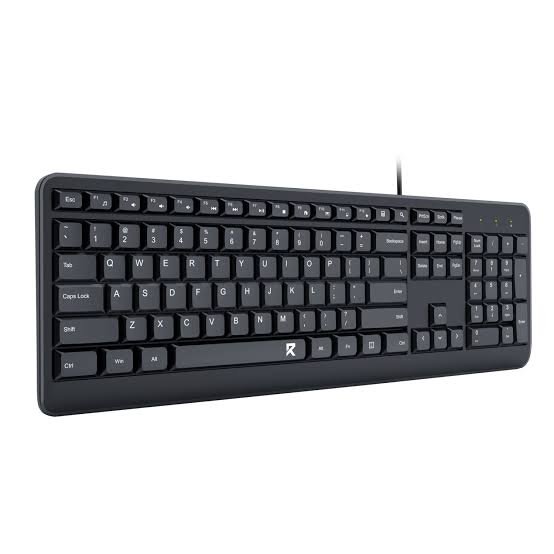
Keyboard
A device used to enter data into a computer.
A physical keyboard requires users to press keys, while an on-screen keyboard is displayed on a touchscreen.
💡 Exam Tip
If the question asks “Why is a keyboard used?”, don’t just write “to input data.” Give a specific example, such as entering text into a word-processing document.
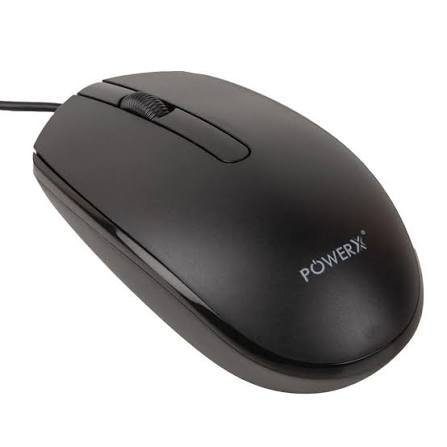
Mouse
A device used to control the pointer on the screen.
It is used to select, open, move and interact with objects on the screen.
💡 Exam Tip
If asked “Why is a mouse used?”, give a specific use rather than simply saying “to input data.”
Example: A mouse is used to select an icon or button on the screen.
Key term to remember:
Mouse → controls the pointer → selects and interacts with on-screen objects.
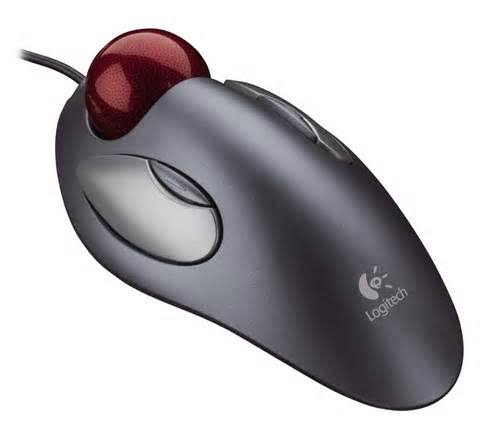
Tracker ball
A device used to control the pointer on the screen.
The user rotates a ball with their fingers or thumb to move the pointer.
It is useful where desk space is limited.
💡 Exam Tip
Trackball vs Mouse: A mouse is moved across a surface, while a trackball stays in one place and the user rotates the ball to control the pointer.
Key term to remember:
Trackball → rotate the ball → move the pointer.
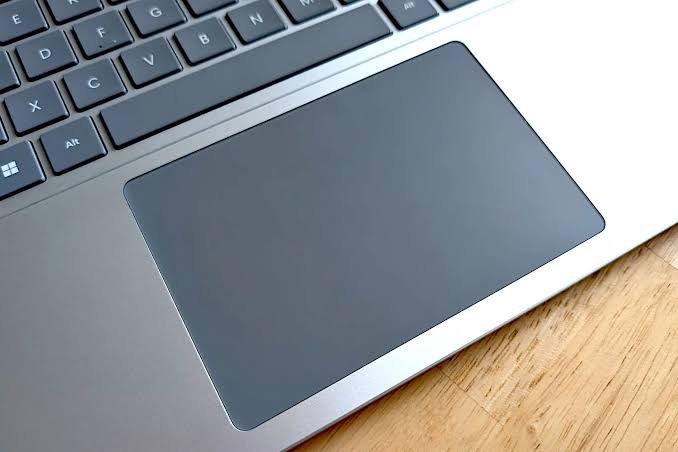
Track pad
A device used to control the pointer on a screen. It is commonly built into laptops.
Multi-touch gestures can be used for actions such as scrolling or zooming.
💡 Exam Tip
Trackpad vs Mouse: A trackpad is built into most laptops and uses finger movement on a touch-sensitive surface, while a mouse is moved across a physical surface.
Key term to remember:
Trackpad → finger movement → controls the pointer.
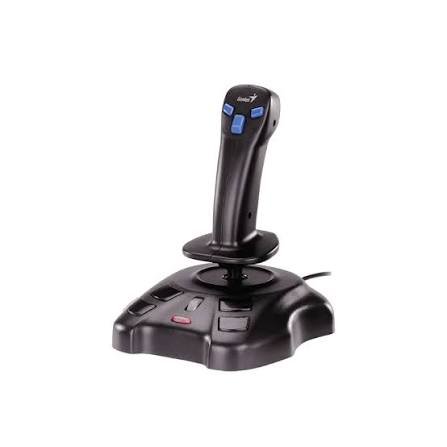
Joystick
A device used to control movement or direction on a screen. It has a stick that can be moved in different directions.
It is commonly used to control characters, vehicles or aircraft in computer games and simulations.
💡 Exam Tip
If asked why a joystick is used, mention the specific need for directional or movement control, especially in games and simulations.
Key term to remember:
Joystick → move in directions → control movement.
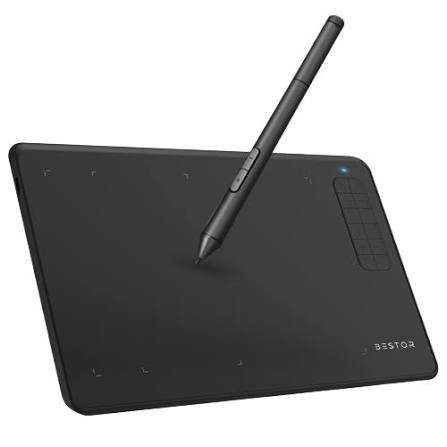
Graphics tablet
A graphics tablet is used to create drawings and digital artwork. The user draws on a pressure-sensitive surface using a stylus.
It provides greater accuracy and control than a mouse for drawing. It is commonly used by graphic designers, artists and illustrators.
💡 Exam Tip
If asked why a graphics tablet is used, mention accurate and natural drawing, rather than simply saying “to input images.”
Key term to remember:
Graphics tablet → stylus + pressure-sensitive surface → accurate digital drawing.
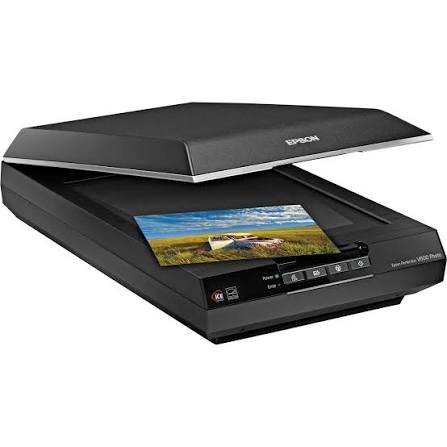
Scanner
A device used light sensors to convert printed documents or photographs into digital form as an image.
A scanner can be used with OCR (Optical Character Recognition) software to convert printed text into editable digital text.
💡 Exam Tip
If asked why a scanner is used, say that it converts a physical document or image into a digital form that can be stored or processed by a computer.
Key term to remember:
Scanner → paper/image → digital form.
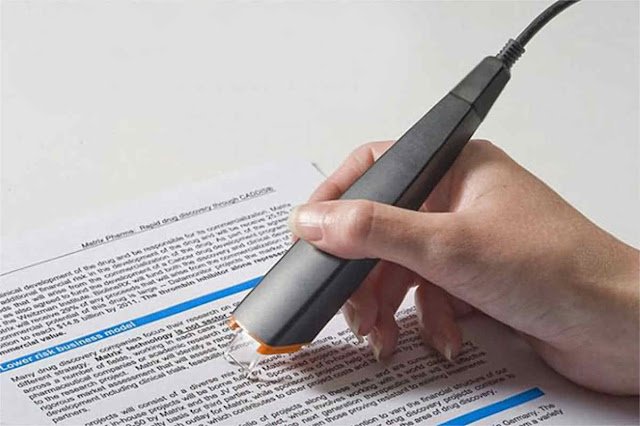
OCR Scanner
Specialized physical hardware that scans printed text directly into a computer using integrated optical sensors and built-in OCR software.
OCR is software that recognises text from a scanned image or document.
It converts the recognised characters into editable digital text.
Reads the shapes of letters and numbers to extract actual written content.
Eg: Handheld pen scanners, passport readers at airport customs, check scanners at banks
💡 Exam Tip
Remember: A scanner captures the document; OCR recognises the text.
Key term to remember:
Scanner → creates digital image → OCR → converts printed text into editable text.
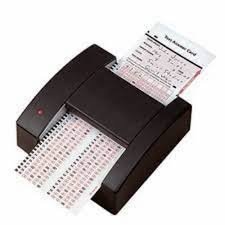
OMR Scanner
OMR is a technology used to detect marks made on specially designed forms.
Does not recognize characters or letters.
It is commonly used to read multiple-choice answer sheets.
An OMR scanner detects the position of the marked answers.
It allows large numbers of forms to be processed quickly and accurately.
Common uses include school examinations, surveys and questionnaires.
💡 Exam Tip
OMR detects marks, not written characters. For example, it can detect which answer box a student has shaded on a multiple-choice paper.
Key term to remember:
OMR → detects marks → reads answer sheets quickly.
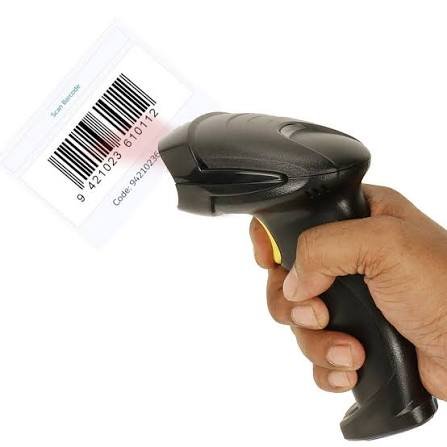
Barcode scanner
A barcode reader is an input device used to read information stored in a barcode.
It uses a light source and sensor to scan the pattern of bars.
The barcode data is sent to a computer or database for processing.
It is commonly used in shops and supermarkets to identify products and retrieve their prices.
It makes data entry quick and reduces human typing errors.
💡 Exam Tip
Barcode reader ≠ barcode.
The barcode stores the information, while the barcode reader scans and reads it.
Key term to remember:
Barcode → stores coded data | Barcode reader → reads the data.
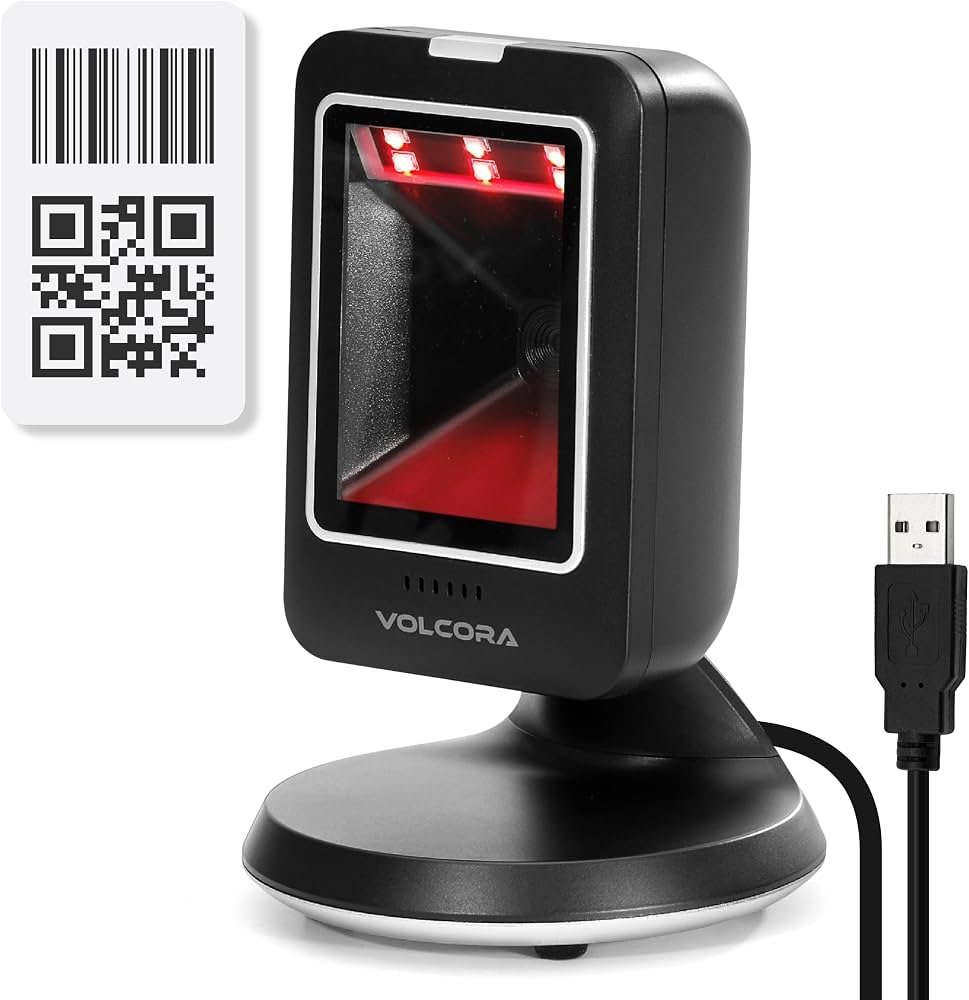
QR code scanner
A QR code scanner is an input device or camera-based system used to read QR codes.
It captures the QR code using a camera or image sensor.
The encoded information is then decoded and processed by software.
QR codes can store information such as website links, text and other data.
They are commonly used for payments, accessing websites, tickets and product information.
💡 Exam Tip
QR code = stores the information | QR scanner = captures and reads the QR code.
Key term to remember:
QR scanner → captures QR code → decodes information.
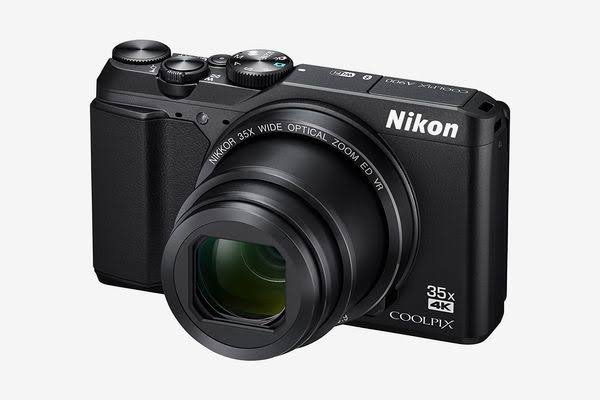
Digital camera
A digital camera is an input device used to capture still images and video.
It uses an image sensor to convert light into digital data.
Images and videos can be transferred to a computer for storage, editing or sharing.
Digital cameras are commonly used in photography, media production and documentation.
💡 Exam Tip
If asked why a digital camera is used, mention that it captures images or video as digital data that can be stored and processed by a computer.
Key term to remember:
Digital camera → captures images/video → digital data.
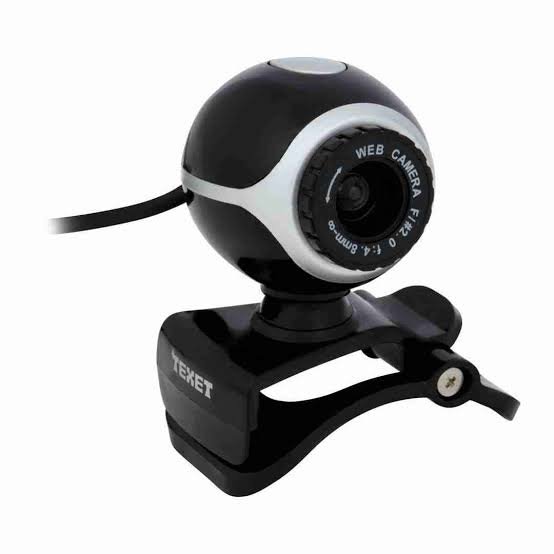
Web camera
A web camera (webcam) is an input device used to capture live images and video.
It is commonly used for video calls, online meetings and live streaming.
The webcam sends the captured video directly to a computer or other device.
Many laptops and monitors have built-in webcams.
A webcam can be used with video-conferencing software to communicate online.
💡 Exam Tip
Digital camera vs webcam: A digital camera is mainly used to capture and store photographs or videos, while a webcam is designed to capture live video for communication or streaming.
Key term to remember:
Webcam → captures live video → computer → online communication.
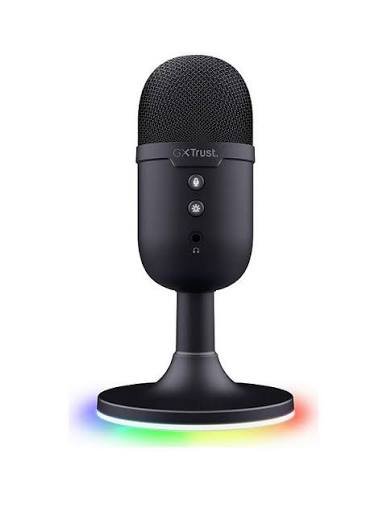
Microphone
A microphone is an input device used to capture sound.
It converts sound waves into electrical/digital signals that a computer can process.
It is commonly used for voice recording, video calls, online meetings and speech recognition.
A microphone can be used with speech recognition software to convert spoken words into text.
Many laptops, webcams and headsets have built-in microphones.
💡 Exam Tip
If asked why a microphone is used, state that it captures sound and sends it to a computer for processing or recording.
Key term to remember:
Microphone → captures sound → computer → processes/records sound.
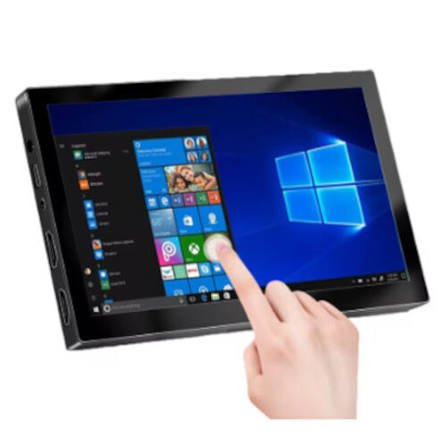
Touch screen
A touchscreen is both an input and output device.
It displays information and allows the user to enter commands by touching the screen.
Multi-touch gestures can be used for actions such as scrolling, zooming and rotating.
Touchscreens are commonly used in smartphones, tablets, ATMs, self-service kiosks and information systems.
💡 Exam Tip
Touchscreen = input + output.
It displays information to the user and accepts input through touch.
Key term to remember:
Touchscreen → displays information + accepts touch input.
Resistive — detects pressure
Capacitive — detects electrical changes
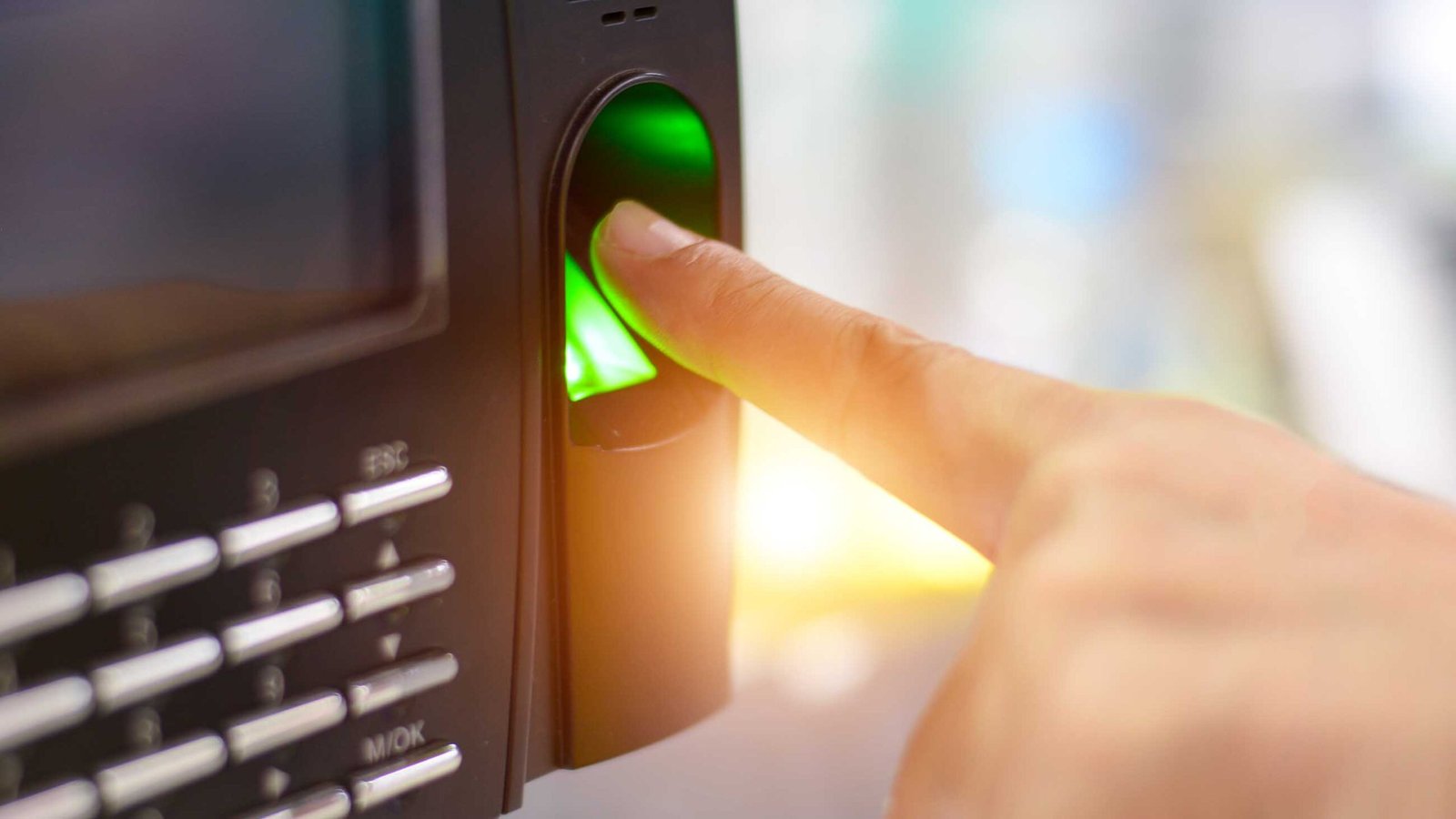
Biometric scanner
A biometric scanner is an input device used to capture a person’s unique biological characteristics.
It can scan features such as fingerprints, facial features or the iris of the eye.
The captured biometric data is compared with stored data to verify a person’s identity.
It is commonly used for security and authentication, such as accessing devices or secure areas.
🔍 Types of Biometric Scanners
- Fingerprint scanner — captures the unique patterns of a person’s fingerprint.
- Facial recognition scanner — analyses the features of a person’s face.
- Iris scanner — identifies a person using the unique pattern in the iris of the eye.
- Retina scanner — uses the unique pattern of blood vessels at the back of the eye.
- Voice recognition — analyses characteristics of a person’s voice.
💡 Exam Tip
Biometric scanner → captures unique biological data → compares it with stored data → verifies identity.
Key term to remember:
Biometric = unique biological characteristic used for identification.
Card reader
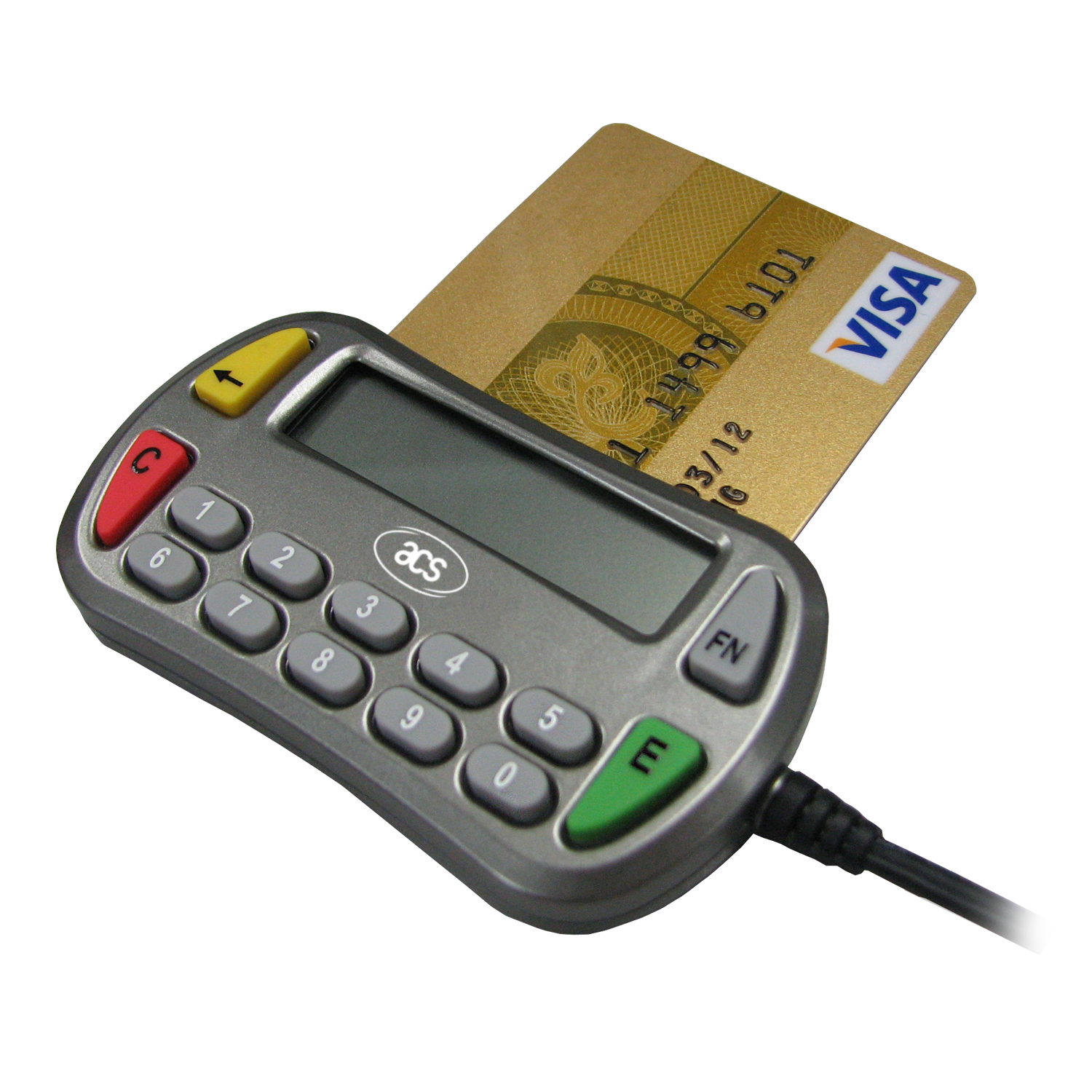
A card reader is an input device used to read data stored on a bank card or other smart card.
It can read information from a magnetic stripe or chip on a card.
The card reader sends the data to a computer or payment system for processing.
It is commonly used in shops, banks and payment terminals.
Contactless card readers can read cards using NFC (Near Field Communication) technology.
Click here to learn more about NFC and RFID.
💡 Exam Tip
Card reader → reads card data → sends it to a computer/payment system for processing.
Key term to remember:
Card reader = input device used to read data from a card.
Sensor
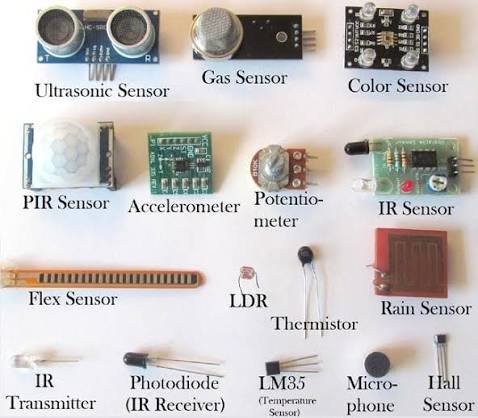
A device that detects changes in the environment.
It collects data such as temperature, light, pressure, sound or movement.
The sensor converts the detected change into a signal that a computer or control system can process.
Sensors are widely used in monitoring and control systems.
They allow systems to respond automatically to changes in their surroundings.
🔍 Common Types of Sensors
- Temperature sensor — detects temperature
- Light sensor — detects light intensity
- Pressure sensor — detects pressure
- Motion sensor — detects movement
- Sound sensor — detects sound levels
💡 Exam Tip
A sensor does not make the decision. It collects data, which is then processed by the computer or control system.
Key term to remember:
Sensor → detects change → sends data → computer processes it.
What is the difference between RFID and NFC?
RFID (Radio Frequency Identification) and NFC (Near Field Communication) are wireless data transfer technologies that use radio waves to read and transmit data without physical contact or line-of-sight.
| Feature | RFID (Radio Frequency Identification) | NFC (Near Field Communication) |
| Full Form | Radio Frequency Identification | Near Field Communication |
| Operating Range | Long Range: Up to 100 meters | Very Short Range: Under 10 cm |
| Communication Direction | One-way: Reader reads passive tags/labels. | Two-way: Devices can both read and transmit data (peer-to-peer). |
| Data Processing Capacity | Small amounts of data (usually unique identification numbers or barcodes). | Can transfer richer data formats (payment tokens, contact cards, web links). |
| Applications | Asset tracking, warehouse inventory management, livestock tracking, electronic toll collection (e.g., highway passes). | Contactless card payments (Apple Pay, Google Wallet), transit passes |
What is the difference between Capacitive and Resistive touch screens?
| Feature | Capacitive Touch Screen | Resistive Touch Screen |
| How It Detects Touch | Measures changes in an electrical field/charge caused by conductive human skin. | Measures physical pressure that pushes two flexible conductive layers together to touch. |
| Touch Input Required | Bare conductive finger or specialized capacitive stylus (does not work with regular gloves, plastic, or plain fingernails). | Any object that applies physical pressure (finger, gloved hand, plastic stylus, fingernail). |
| Multi-Touch Support | Yes (supports multi-finger gestures like pinch-to-zoom and swiping). | No / Extremely limited (generally single-point touch only). |
| Screen Clarity & Brightness | High (solid glass layer provides excellent light transmittance and vibrant display). | Lower (multiple flexible plastic layers reduce brightness and can appear slightly hazy in sunlight). |
| Durability & Scratch Resistance | High (tough glass surface; scratches do not affect functionality). | Lower (outer soft plastic layer can be easily scratched or damaged by sharp objects). |
| Cost | More expensive to manufacture. | Inexpensive and low-cost to produce. |
| Primary Use Cases | Smartphones, tablets, modern laptops, interactive museum displays, modern car dashboards. | ATMs, medical equipment, industrial factory control panels, GPS devices, restaurant POS order terminals. |
Exam Practice – Try the questions below to practise applying your knowledge.
Part A — Multiple Choice Questions
1. Which device is mainly used to enter text and numbers into a computer?
A. Scanner
B. Keyboard
C. Microphone
D. Monitor
2. Which device is most suitable for controlling a character’s movement in a computer game?
A. Scanner
B. Joystick
C. Barcode reader
D. Microphone
3. Which technology converts printed text in a scanned document into editable text?
A. OMR
B. OCR
C. NFC
D. RFID
4. Which input device is commonly used to read product information at a supermarket checkout?
A. Graphics tablet
B. Barcode reader
C. Trackpad
D. Webcam
5. Which of the following is both an input and an output device?
A. Keyboard
B. Scanner
C. Touchscreen
D. Microphone
Part B — Short Answer Questions
1. State the purpose to use an input device?
2. State the difference between a capacitive touchscreen and resistive touchscreen.
3. State the reason to use a scanner?
4. Different types of biometric scanners are there. State two of them.
5. List three sensors and mention the reason to use them.
Part C — Explain Questions
1. Explain how a scanner and OCR can be used together to convert a printed document into editable text.
2. Explain why a graphics tablet is more suitable than a mouse for creating digital artwork.
3. Explain how a barcode reader is used in a supermarket.
4. Explain why a touchscreen is considered both an input and an output device.
5. Explain how a biometric scanner can be used to improve security.
6. Explain the difference between a resistive and a capacitive touchscreen.
7. Explain why sensors are useful in an automated control system.
Challenge Question
A school wants to create an automated system that records students’ attendance using fingerprints.
a) Which input device would be suitable?
b) What type of data does it capture?
c) Explain how the system could verify a student’s identity.